Aruba Central Online Help

The following workflow explains the process to configure AOS-CX switches using UI options.
Figure 1 UI Configuration Workflow for AOS-CX Switches
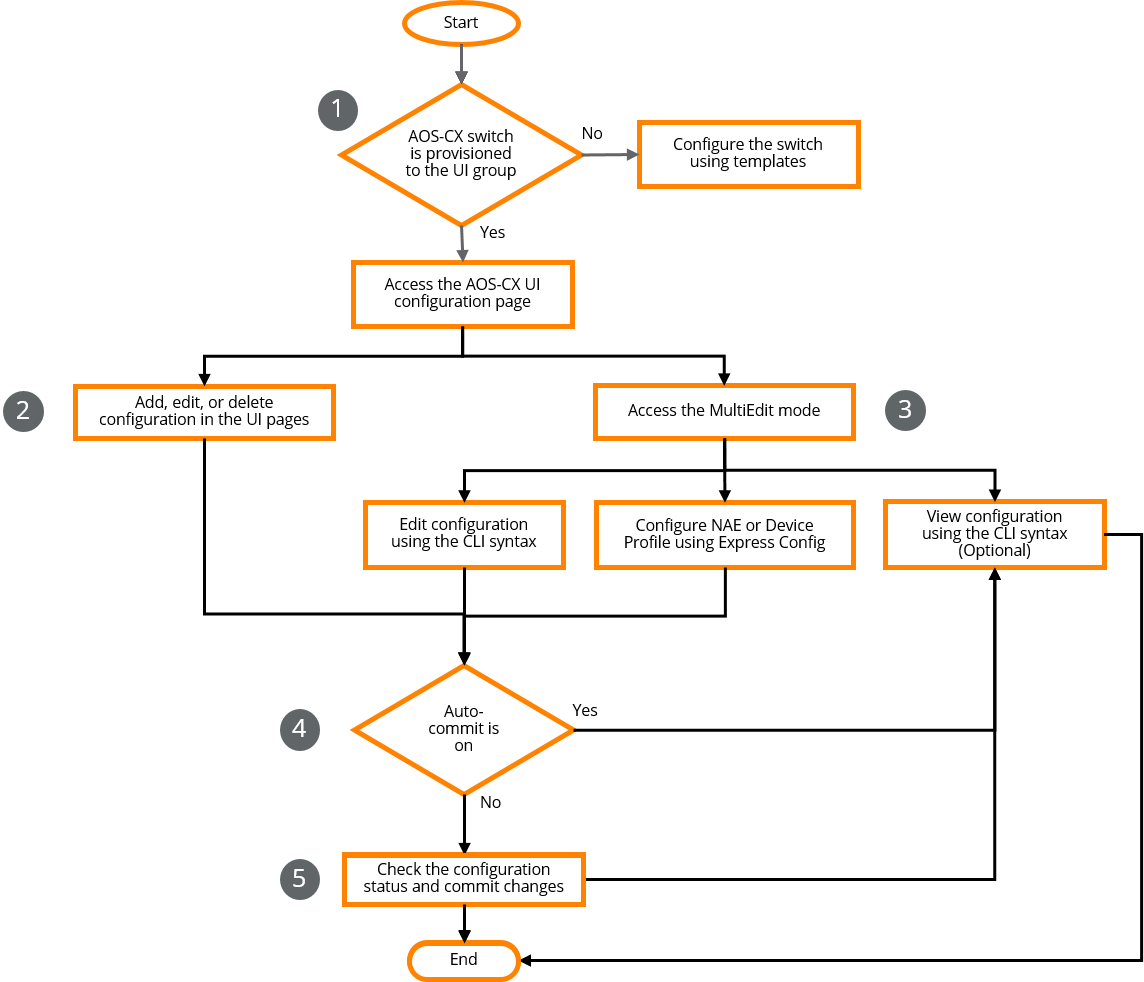
Workflow Steps
- Provision an AOS-CX switch to a UI group in Aruba Central (on-premises). See Getting Started with AOS-CX Deployments.
When you add AOS-CX switches to a UI group, you can configure them using the following options:
- Various UI options
- MultiEdit mode
- Configure the switch using the different configuration options available on the UI. You can add, edit, or delete configurations using the UI options.
- Configure the switch in the MultiEdit mode—The MuliEdit mode offers a CLI syntax-based configuration functionality for AOS-CX switches. You can view or edit the running configuration on the switch or apply express configuration.
See Using MultiEdit View for AOS-CX.
- —Edit switch configuration using the CLI syntax. You can edit the configuration of switches. After you edit the configuration, you can view the difference between the running configuration and the edited configuration in the same window. See Editing Configuration Using MultiEdit on AOS-CX.
- —Apply a predefined set of configuration settings to switches using this option for device profile and NAE configurations. See Express Configuration Using MultiEdit on AOS-CX.
- View the running configuration on the switch using this option. The changes made on the UI options, Edit Config, or the Express Config pages will appear on this page only if the Auto-Commit state is on or if the changes are committed manually. See Viewing Configuration Using MultiEdit on AOS-CX.
- Depending on the Auto-Commit state of the switch, you can either view the configuration changes immediately or commit the changes first and then view the configuration changes.
- If the Auto-Commit state is on, Aruba Central (on-premises) applies the configuration changes immediately to the switch. You can view the configuration on the View Config page in the MultiEdit mode.
- If the Auto-Commit state is off, you must manually commit changes to the switch and then view the configuration.
- When the Auto-Commit state is off, check whether there are any pending changes to be applied to the switch, in the Configuration Status page. Commit any pending configuration changes to the switch and view the updated configuration.
